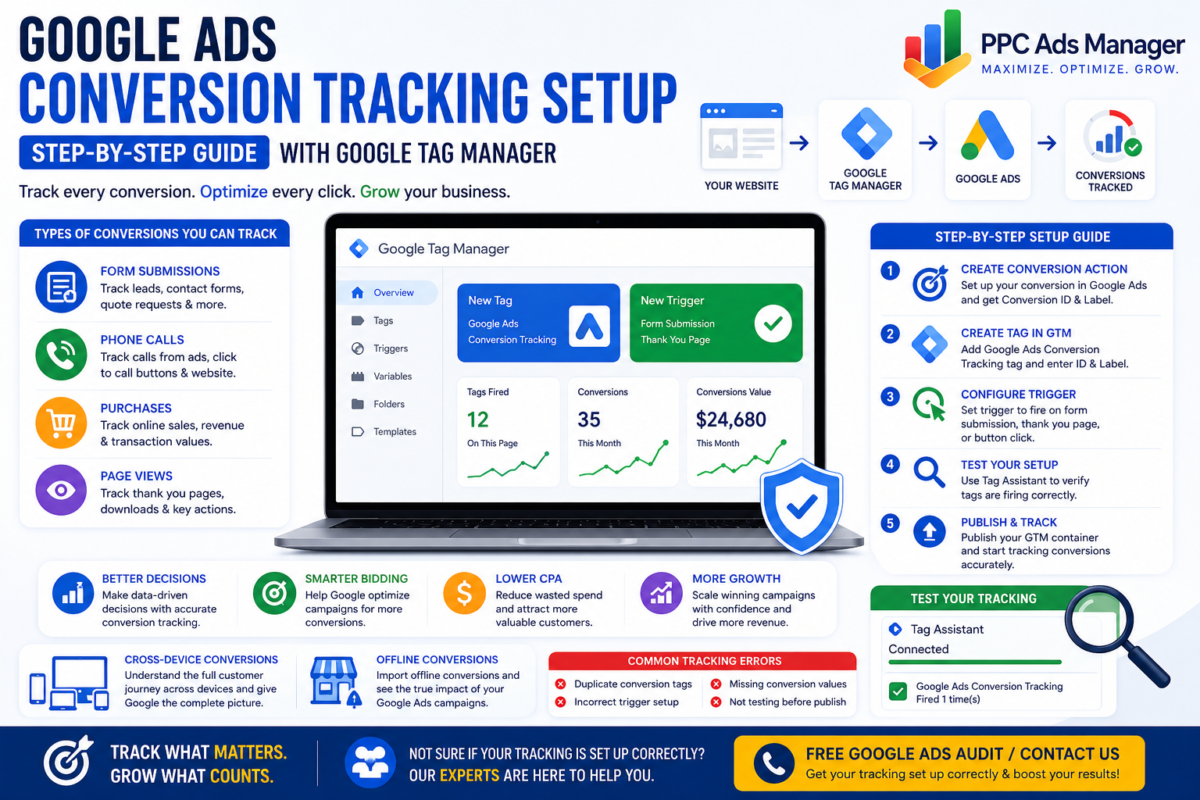
Running Google Ads without conversion tracking is like driving without a destination. You may generate clicks and traffic, but without proper tracking, it becomes impossible to know which campaigns, keywords, and advertisements are actually producing results.
Conversion tracking is the foundation of every successful Google Ads strategy. It provides the data needed to measure performance, optimize campaigns, improve bidding strategies, and maximize return on investment. Whether your goal is lead generation, phone calls, online purchases, or appointment bookings, accurate tracking ensures every advertising decision is backed by meaningful insights.
In this guide, you will learn how to set up Google Ads conversion tracking using Google Tag Manager and how to avoid common implementation mistakes that can impact campaign performance.
Why Conversion Tracking Is Essential
Google Ads relies heavily on conversion data to optimize campaigns effectively. Without accurate tracking, Google’s automated bidding strategies have limited information and cannot make intelligent optimization decisions.
Proper conversion tracking helps advertisers:
- Measure campaign profitability
- Identify high performing keywords
- Improve bidding strategies
- Reduce wasted advertising spend
- Understand customer behavior
- Increase conversion rates
- Scale successful campaigns confidently
Businesses that invest in accurate tracking often achieve significantly better advertising performance compared to those relying solely on click data.
Types of Conversions You Can Track
Google Ads supports several different conversion actions depending on your business objectives.
Form Submissions
For lead generation businesses, form submissions are among the most common conversion types. Examples include:
- Contact forms
- Quote requests
- Consultation bookings
- Demo requests
Phone Calls
Businesses that rely on inbound calls can track:
- Calls from advertisements
- Calls from website visitors
- Click to call actions on mobile devices
Purchases
ECommerce businesses can track completed transactions, purchase values, and revenue generated through Google Ads campaigns.
Page Views
Specific page visits such as thank you pages or confirmation pages can also be tracked as conversion actions.
These conversion types provide valuable insights into customer actions and campaign effectiveness.
Step 1: Create a Conversion Action in Google Ads
Before using Google Tag Manager, you must first create a conversion action within your Google Ads account.
Follow these steps:
- Sign in to Google Ads.
- Navigate to Goals.
- Select Conversions.
- Click Create Conversion Action.
- Choose the appropriate conversion source.
- Enter conversion details including:
- Conversion name
- Value
- Count settings
- Attribution model
- Save the conversion action.
Google Ads will then generate a Conversion ID and Conversion Label, which will be required during implementation.
Step 2: Install Google Tag Manager
If Google Tag Manager is not already installed on your website, create a GTM account and add the container code to your website.
Google Tag Manager simplifies tracking implementation by allowing marketers to manage tags without directly editing website code.
Once installed successfully, you can begin configuring conversion tracking.
Step 3: Create a Google Ads Conversion Tag
Inside Google Tag Manager:
- Select Tags.
- Click New.
- Choose Google Ads Conversion Tracking.
- Enter the Conversion ID.
- Enter the Conversion Label.
- Save the tag configuration.
This tag will send conversion information back to Google Ads whenever a desired action occurs.
Step 4: Configure the Trigger
Triggers determine when the conversion tag fires.
Examples include:
Form Submission Trigger
Use this trigger when tracking completed lead forms.
Thank You Page Trigger
Fire the conversion tag when users reach a dedicated confirmation page after submitting a form or completing a purchase.
Button Click Trigger
Track clicks on important buttons such as:
- Call Now
- Book Appointment
- Request Quote
Selecting the correct trigger is essential for accurate conversion measurement.
Step 5: Test Your Tracking Setup
Before publishing changes, verify that everything functions correctly.
Google Tag Assistant is one of the best tools for testing implementation.
Check that:
- Tags fire correctly
- Triggers activate at the correct moment
- Conversion data is being transmitted properly
- No duplicate tags exist
Testing prevents inaccurate reporting and ensures reliable campaign data.
Step 6: Publish Your GTM Container
Once testing is complete:
- Click Submit within Google Tag Manager.
- Add a version name.
- Publish the container.
Your conversion tracking setup is now live and collecting data.
Understanding Cross Device Conversions
Modern customers often interact with businesses across multiple devices before converting.
For example:
- A user may discover your advertisement on mobile.
- Research products later on a tablet.
- Complete a purchase on a desktop computer.
Google Ads can attribute these cross device interactions, providing a more complete picture of customer behavior and campaign impact.
Tracking Offline Conversions
Many businesses generate leads online but close sales offline.
Examples include:
- Phone consultations
- Sales meetings
- In person purchases
- Contract signings
Offline conversion imports allow businesses to connect these outcomes back to Google Ads campaigns, providing more accurate performance measurement.
This data is particularly valuable for service based businesses and high value sales processes.
Common Conversion Tracking Errors
Even experienced advertisers encounter tracking issues.
Duplicate Conversion Tags
Multiple conversion tags firing for the same action can inflate conversion numbers and distort performance data.
Incorrect Trigger Configuration
Poorly configured triggers may fire too early, too late, or not at all.
Missing Conversion Values
ECommerce advertisers should ensure purchase values are passed correctly to measure return on ad spend accurately.
Failure to Test Implementation
Skipping testing often results in inaccurate reporting and optimization challenges.
Tracking the Wrong Actions
Focus on meaningful business outcomes rather than vanity metrics.
Tracking page views without business value may confuse optimization efforts.
Best Practices for Long Term Success
To maintain accurate tracking:
- Audit conversion actions regularly
- Review tag performance periodically
- Monitor discrepancies between platforms
- Test updates before publishing
- Track only meaningful business outcomes
- Keep Google Tag Manager organized
Consistent maintenance ensures reliable data and stronger campaign performance over time.
Conclusion
Google Ads conversion tracking is one of the most important components of any successful advertising strategy. Without accurate tracking, it becomes impossible to evaluate campaign performance, improve bidding decisions, or scale profitable campaigns effectively.
Google Tag Manager simplifies the implementation process while providing flexibility and control over tracking configurations. By following a structured setup process and testing thoroughly, businesses can build a reliable data foundation that supports smarter advertising decisions and stronger results.
Ready to Get Your Tracking Set Up Correctly?
Accurate conversion tracking can dramatically improve campaign performance, reduce wasted advertising spend, and help Google optimize for the outcomes that matter most to your business.
Free Google Ads Audit | Contact Us
Our team can review your tracking setup, identify implementation issues, and ensure your campaigns are collecting accurate conversion data. Contact us today at Free Google Audit and discover how proper tracking can unlock better performance and higher returns from your Google Ads investment.